

PQM Training Modules Marketplace
PQM Training / Modules / Marketplace
Expansion Layer
Modules / Marketplace
Understand optional modules, activation states, license entitlements and safe expansion beyond the core.
Production OSWordPress CoreRole-based workflowTraining Center
Training pages
Training HomeProduction DashboardCore ConfigurationTasks and Add TaskDepartments and WorkflowCalendar and Standard GanttEmail Queue and CommunicationReports and KPIModules / MarketplaceSetup WizardLicense and Demo ModeHelp and TrainingAdmin PanelClient PanelEmployee Worker PortalShop Manager / SupervisorImplementation Checklist
Purpose in plain language
Modules / Marketplace is the place where PQM can grow beyond the core. The core should stay stable and focused on production tasks, while optional modules add areas such as warehouse, CRM, documents, planning, AI analytics, employee access, client portal and integrations.
For a beginner, the Marketplace is like a catalog of additional powers. It should clearly show what is installed, what is active, what requires a license and what is available later.
Where to click
Log in as administrator.
Open PQM → Modules, Marketplace or Admin Panel → module registry.
Review installed modules first. Check if each module is active, inactive or unavailable due to license.
If installing a ZIP module is supported, upload only trusted PQM module packages.
After activating a module, refresh the admin menu and verify that the new menu/page works for the correct role.
Module states explained
| State | Meaning | What to do |
|---|---|---|
| Available | The module exists in catalog and can be installed/activated if licensed. | Read description before enabling. |
| Installed | Module files are present on the site. | Activate if license and dependencies allow it. |
| Active | Module is running and should add features/pages. | Test permissions and menu links immediately. |
| Inactive | Files exist but the module is not booted. | Activate only when needed; leave inactive modules if not used. |
| Locked / license required | Module is not available under current license/entitlement. | Check license screen or purchase/assign entitlement. |
| Error / health warning | Module failed to load or dependency is missing. | Open Health Center/Admin Panel and check logs before continuing. |
Typical module categories
Production expansion
- Warehouse
- Documents Hub Pro
- Quality Control
- Machines & Maintenance
- Production Recipes
- Advanced Planning / Gantt Pro
Business expansion
- CRM Pro
- Client Portal Pro
- Purchasing & Suppliers
- HR
- Automation Engine
- API Integrations
Safe activation workflow
Make a backup before installing or updating modules on a production site.
Check whether the core version is compatible with the module version.
Check license state and module entitlement.
Install or activate the module.
Open the module page and confirm it loads without critical errors.
Check permissions: admin, manager, worker and customer should not all see the same actions.
Create one test record or perform one safe test action.
Only then use the module with real production data.
Dependencies and expectations
| Module | Usually needs | Beginner warning |
|---|---|---|
| Warehouse | Products/materials, stock movements, user logging, documents. | Do not activate without deciding how reservations and real stock issue will work. |
| Documents Hub | Task/order/warehouse/CRM document sources. | It should aggregate documents, not create chaos with duplicated files. |
| CRM | Contacts, companies, notes, activity history. | Decide who owns client data before importing. |
| Advanced Gantt | Dates, departments, capacities and optionally machines/days off. | Wrong task dates create wrong planning. |
| AI / NASA Analytics | Clean task history and enough data volume. | AI insights are only useful if the underlying production data is reliable. |
Good practice
- Stabilize core before enabling many modules.
- Enable one module at a time and test it with a realistic workflow.
- Keep a written list of active modules, license entitlements and business owner for each module.
- Do not let Marketplace become a toy box. Every active module should solve a real business problem.
Screenshot reference
How to use screenshots
Click any screenshot to open it in a new tab. This is useful for zooming in while following the step-by-step instructions.
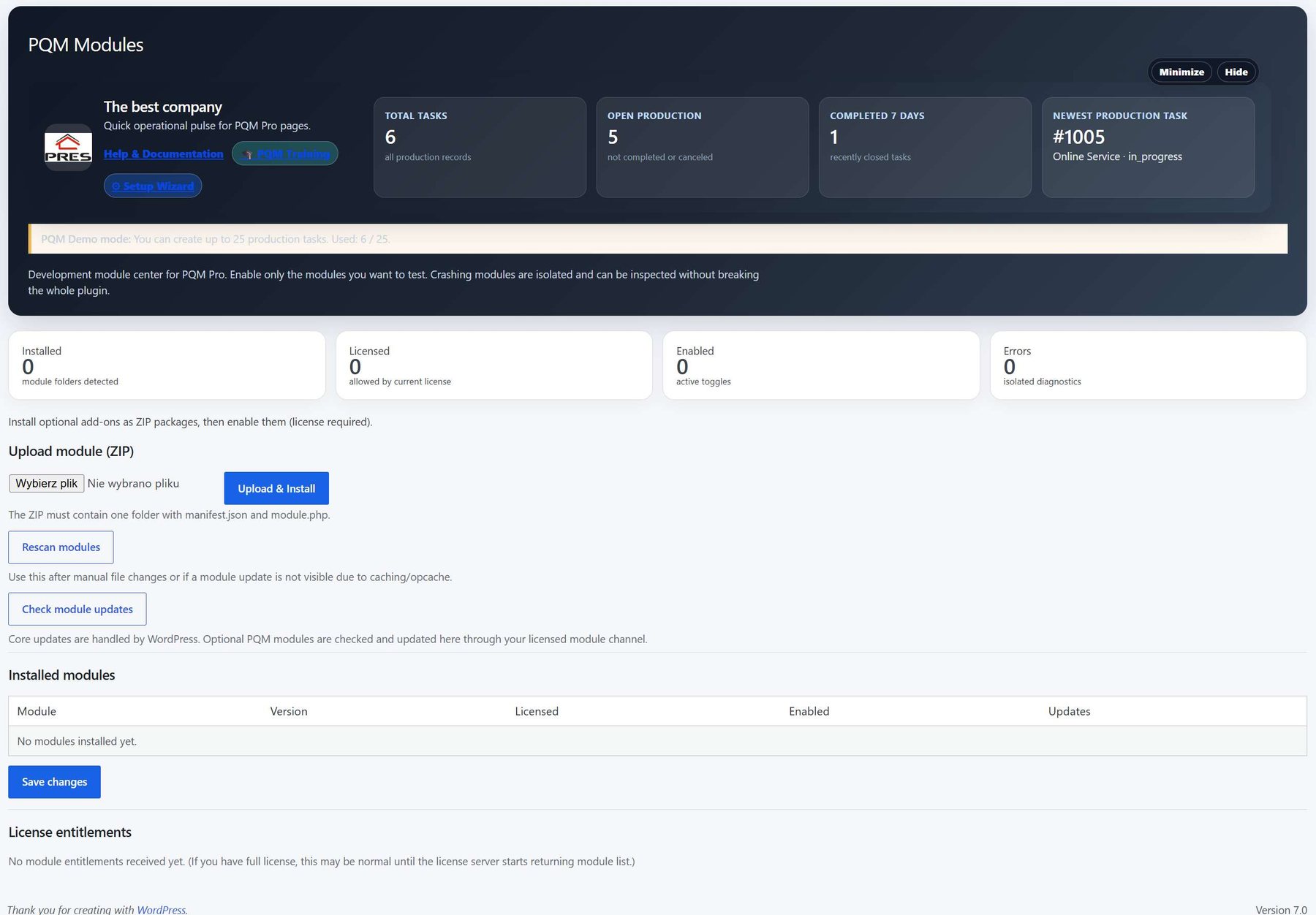
Modules / Marketplace
Modules and marketplace reference. Use it to explain installed modules, available modules and upgrade path.
Who should use this screen?
AdministratorConfigures PQM, licenses, modules, health checks, capabilities and technical maintenance. This role should be limited to trusted users.
Manager / Shop ManagerControls daily production, creates tasks, checks reports, follows deadlines and supervises employee work without changing technical settings.
Production EmployeeWorks mainly in the frontend Employee Portal and updates assigned production stages without using the WordPress admin area.
Troubleshooting for beginners
| Symptom | Simple explanation | What to check first |
|---|---|---|
| The page looks empty | The system may have no demo data yet, or the current user may not have access to the required role/capability. | Create one test task, assign a department, then refresh the screen. Also check the user role. |
| A button opens a login page or My Account | The visitor is not logged in or the page is using a frontend-safe route that requires authentication. | Log in with a test user that has the expected role. Check whether the shortcode/page is visible only to logged-in users. |
| Data exists but does not appear in a report/chart | Filters, date range, status rules or completion dates may exclude the task. | Clear filters, expand the date range and verify that the task has the status/date required by the report. |
| Something changed but the screen still shows old data | Browser cache, WordPress cache or AJAX response cache may show old information. | Refresh the page, clear cache for this page and test in an incognito window before debugging code. |
| The layout is broken on a small screen | Wide tables and timelines need horizontal space; this is normal if the content remains readable. | Use the mobile breakpoint, keep cards in one column and allow horizontal scroll only inside tables/timelines. |
Readiness checklist
A beginner can explain what this screen is for after reading the first two sections.
The correct role can open the screen and restricted roles cannot see unsafe actions.
There is at least one realistic test task visible in the screen.
Buttons and links go to the expected place.
The empty state explains what to do next instead of looking broken.
The page remains readable on tablet and mobile.
Related training pages
Training HomeTraining overview and recommended learning path.Production DashboardDaily command center, active tasks, metrics and quick actions.Core ConfigurationSystem settings, statuses, roles, capabilities and safe defaults.Tasks and Add TaskHow to create, read and update production tasks step by step.Departments and WorkflowHow production stages and responsibilities are modeled.Calendar and Standard GanttDate planning, deadlines and visual timeline overview.Email Queue and CommunicationCustomer messages, email queue and communication templates.Reports and KPIKPI, margins, bottlenecks, exports and production analysis.