
PQM Szkolenie Emaile
Szkolenie PQM / Email Queue and Customer Communication
Communication
Email Queue and Customer Communication
Send controlled task messages, understand email queue, configure templates and keep communication attached to work.
Production OSWordPress CoreRole-based workflowTraining Center
Training pages
Training HomeProduction DashboardCore ConfigurationTasks and Add TaskDepartments and WorkflowCalendar and Standard GanttEmail Queue and CommunicationReports and KPIModules / MarketplaceSetup WizardLicense and Demo ModeHelp and TrainingAdmin PanelClient PanelEmployee Worker PortalShop Manager / SupervisorImplementation Checklist
Purpose in plain language
Email Queue and Communication keep customer messages connected to the production task. Instead of sending random emails from private inboxes, PQM can record messages, queue notifications and use templates so communication becomes consistent.
For a beginner, the important idea is: every important production message should be linked to the task. When a customer asks “what happened?”, the manager should not search through personal mailboxes.
Where to click
Open PQM in WordPress admin.
Open Email Queue, Communication or task communication area.
To send task-related communication, open the task and use the message/email section connected to that task.
To configure templates, open the email settings/template section if your role allows configuration.
After sending or queueing a message, check whether it appears in the task history or queue list.
Types of communication
| Type | What it is | When to use it |
|---|---|---|
| Automatic notification | Email sent by PQM after a defined trigger. | Task created, task completed or status change depending on version/configuration. |
| Manual task message | User writes a message from inside a task. | When the manager needs to ask the customer for approval or send an update. |
| Internal note | Note for production team, not necessarily sent to customer. | Production instruction, machine note, quality issue, packaging note. |
| Email queue item | A message waiting to be sent or already processed by the mail system. | When checking whether notification was generated and delivered/sent. |
| Template | Reusable message text with placeholders/tokens. | When the same type of email should be consistent for every customer. |
Basic communication workflow
Create or open a task.
Confirm that the customer email address is correct before sending anything.
Choose whether the message is internal or customer-facing.
Write a short, clear message. Avoid production slang if the customer will read it.
Send or queue the message.
Check the queue/task history. If it failed, inspect mail settings and logs before sending duplicates.
Templates and triggers explained
| Trigger / template | Plain-language explanation | Recommended beginner use |
|---|---|---|
| Task created / new | Customer receives confirmation that production task exists. | Good for basic onboarding. Keep message simple and factual. |
| Task completed / end | Customer receives completion or pickup/delivery information. | Good for final customer update. |
| Status change | Email can be sent when task moves between statuses. | Use carefully in Pro/advanced mode. Too many notifications annoy customers. |
| Cancelled | Message related to cancellation. | Use only when cancellation should be communicated. |
| Complaint | Message related to complaint/correction process. | Use controlled language and keep internal investigation notes separate. |
| Header/footer | Reusable branding text around messages. | Use it for company identity, contact info and legal footer. |
How to write good customer messages
Good message
“Your order has entered production. Current stage: Digital Print. Planned completion: 24 May. We will notify you when the order is ready for pickup.”
Bad message
“We are doing it. Should be OK.” This gives no status, no date and no useful information.
How to check the email queue
Open Email Queue.
Look at status: pending, sent, failed or processed depending on the build.
If a message failed, check recipient address first.
Check WordPress mail configuration or SMTP plugin if multiple messages fail.
Do not repeatedly click send if you are not sure. You may create duplicate customer emails.
Good practice
- Keep templates polite, short and operational.
- Use automatic emails only for events that truly matter to the customer.
- Separate internal notes from customer messages.
- Always test email delivery on a staging/test task before going live.
- When debugging, check the queue before assuming the customer did not receive anything.
Screenshot reference
How to use screenshots
Click any screenshot to open it in a new tab. This is useful for zooming in while following the step-by-step instructions.
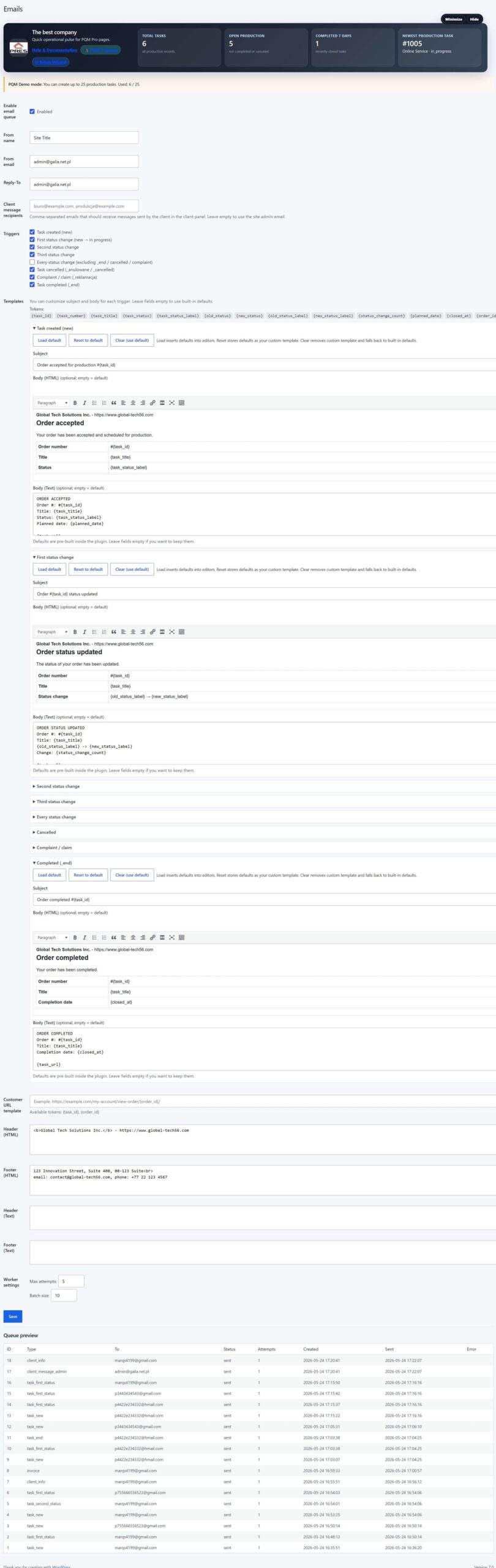
Email Queue and Communication
Email automation and queue reference. Use it to explain notifications, templates and communication flow.
Who should use this screen?
AdministratorConfigures PQM, licenses, modules, health checks, capabilities and technical maintenance. This role should be limited to trusted users.
Manager / Shop ManagerControls daily production, creates tasks, checks reports, follows deadlines and supervises employee work without changing technical settings.
Production EmployeeWorks mainly in the frontend Employee Portal and updates assigned production stages without using the WordPress admin area.
Troubleshooting for beginners
| Symptom | Simple explanation | What to check first |
|---|---|---|
| The page looks empty | The system may have no demo data yet, or the current user may not have access to the required role/capability. | Create one test task, assign a department, then refresh the screen. Also check the user role. |
| A button opens a login page or My Account | The visitor is not logged in or the page is using a frontend-safe route that requires authentication. | Log in with a test user that has the expected role. Check whether the shortcode/page is visible only to logged-in users. |
| Data exists but does not appear in a report/chart | Filters, date range, status rules or completion dates may exclude the task. | Clear filters, expand the date range and verify that the task has the status/date required by the report. |
| Something changed but the screen still shows old data | Browser cache, WordPress cache or AJAX response cache may show old information. | Refresh the page, clear cache for this page and test in an incognito window before debugging code. |
| The layout is broken on a small screen | Wide tables and timelines need horizontal space; this is normal if the content remains readable. | Use the mobile breakpoint, keep cards in one column and allow horizontal scroll only inside tables/timelines. |
Readiness checklist
A beginner can explain what this screen is for after reading the first two sections.
The correct role can open the screen and restricted roles cannot see unsafe actions.
There is at least one realistic test task visible in the screen.
Buttons and links go to the expected place.
The empty state explains what to do next instead of looking broken.
The page remains readable on tablet and mobile.
Related training pages
Training HomeTraining overview and recommended learning path.Production DashboardDaily command center, active tasks, metrics and quick actions.Core ConfigurationSystem settings, statuses, roles, capabilities and safe defaults.Tasks and Add TaskHow to create, read and update production tasks step by step.Departments and WorkflowHow production stages and responsibilities are modeled.Calendar and Standard GanttDate planning, deadlines and visual timeline overview.Reports and KPIKPI, margins, bottlenecks, exports and production analysis.Modules / MarketplaceOptional modules, activation state and upgrade path.