
PQM Training – Admin Panel
Szkolenie PQM / Admin Panel and NextCore Control
Technical Control
Admin Panel and NextCore Control
Technical command area for registry, capabilities, migrations, health checks, Code Guard and NextCore readiness.
Production OSWordPress CoreRole-based workflowTraining Center
Training pages
Training HomeProduction DashboardCore ConfigurationTasks and Add TaskDepartments and WorkflowCalendar and Standard GanttEmail Queue and CommunicationReports and KPIModules / MarketplaceSetup WizardLicense and Demo ModeHelp and TrainingAdmin PanelClient PanelEmployee Worker PortalShop Manager / SupervisorImplementation Checklist
Purpose in plain language
Admin Panel and NextCore Control is the technical command area of PQM. It is not the daily production desk. It is where administrators check system health, registry, capabilities, module readiness, migrations, Code Guard, event logs and technical configuration.
For a beginner, the Admin Panel should be treated like a server room. Managers may need some information from it, but only trusted administrators should change dangerous settings.
Where to click
Log in with an administrator account.
Open PQM → Admin Panel or NextCore.
Start with overview/health cards. Do not immediately change settings.
Open registry/capability/module tabs only when you know what you are checking.
If there is an error, read the message and event log before reinstalling or deactivating modules.
Admin Panel map
| Area | Plain-language meaning | When to use |
|---|---|---|
| Health Center | Shows whether important parts of PQM are working. | After update, before go-live, after a critical error. |
| Module Registry | Technical list of modules, their state and boot status. | When a module menu is missing or feature does not load. |
| Capabilities / permissions | Controls what roles can see and do. | When users cannot access pages or can access too much. |
| Code Guard | Protective layer/checks around module boot and critical code paths. | When testing unstable modules or recovering from errors. |
| Event Log | History of important events, errors or system actions. | When diagnosing “what happened?” |
| Migrations | Database/schema upgrade routines. | After plugin updates or when a module needs new tables/options. |
| Settings Registry | Central place for registered settings/options. | For advanced admin/debugging work. |
Safe technical workflow
Before changing technical settings, make a backup or work on staging.
Open Health Center and confirm current baseline.
If fixing an issue, change only one thing at a time.
Refresh the affected PQM page and test with correct role.
Check Event Log for new errors or warnings.
Write down what changed. Future debugging is much easier when changes are documented.
Permission diagnostics
Many “broken menu” problems are actually permission problems. A user sees a page but cannot open it, or a menu item appears without access to the underlying action.
| Problem | Likely cause | Admin Panel check |
|---|---|---|
| User sees menu but gets access denied | Menu visibility and page capability do not match. | Check capability required by the page and assigned role permissions. |
| Module page missing | Module inactive, not entitled, failed boot or capability hidden. | Check Module Registry, license entitlements and Event Log. |
| Worker sees admin-only page | Capability is too broad or role mapping is wrong. | Review role-based workflow settings. |
| Setup Wizard works from one menu but not another | Different route/capability used by menu entry. | Compare menu registration and capability mapping. |
Good practice
- Do not use Admin Panel as a normal employee workspace.
- After every update, check health, module registry and core pages before touching production data.
- Keep technical messages readable. A shop owner should understand whether the site is safe.
- Log important system actions with user, date and source whenever possible.
Screenshot reference
How to use screenshots
Click any screenshot to open it in a new tab. This is useful for zooming in while following the step-by-step instructions.
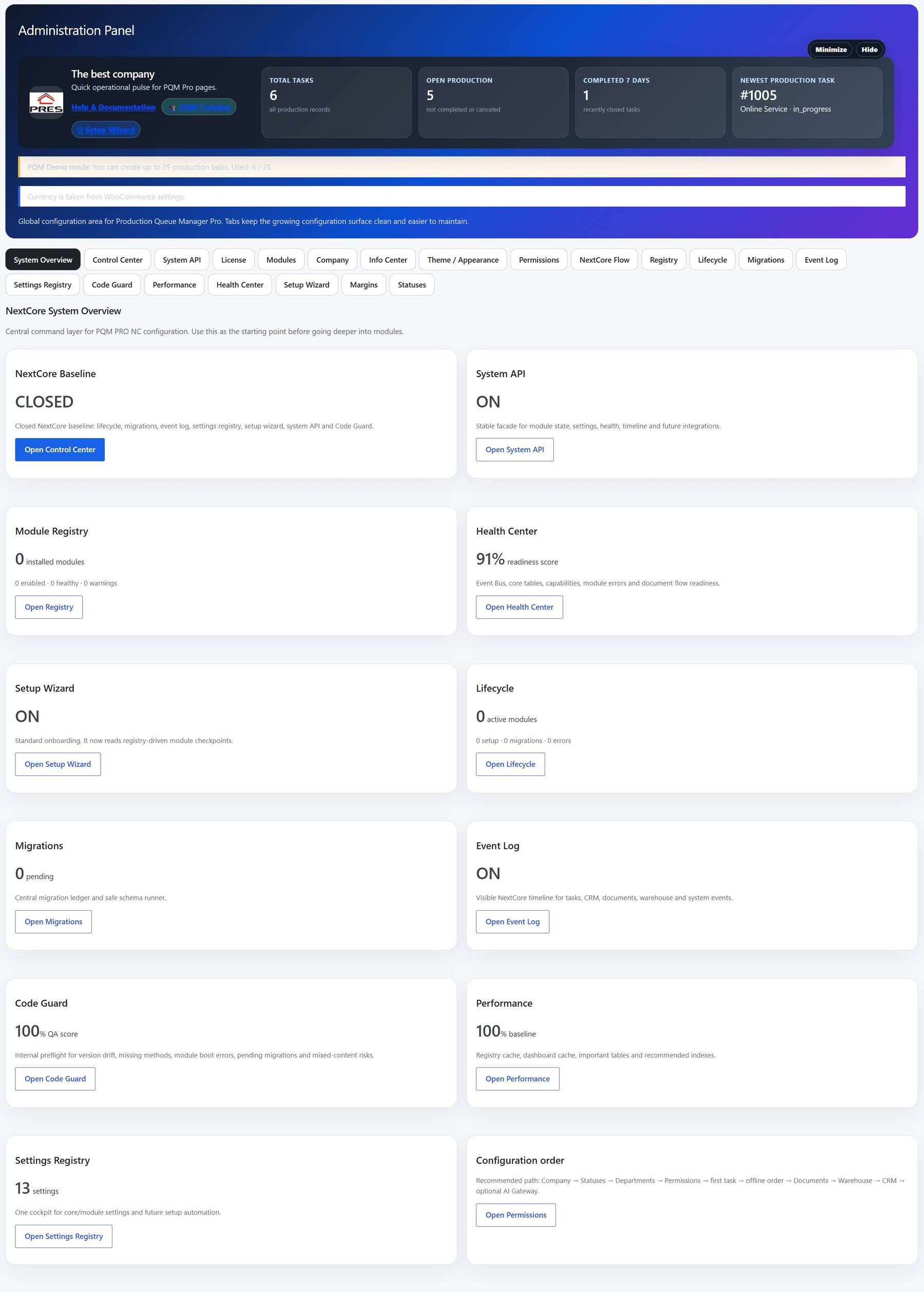
Admin Panel overview
Main Admin Panel reference screen. Use it to compare the real WordPress admin screen with the explanation on this training page.
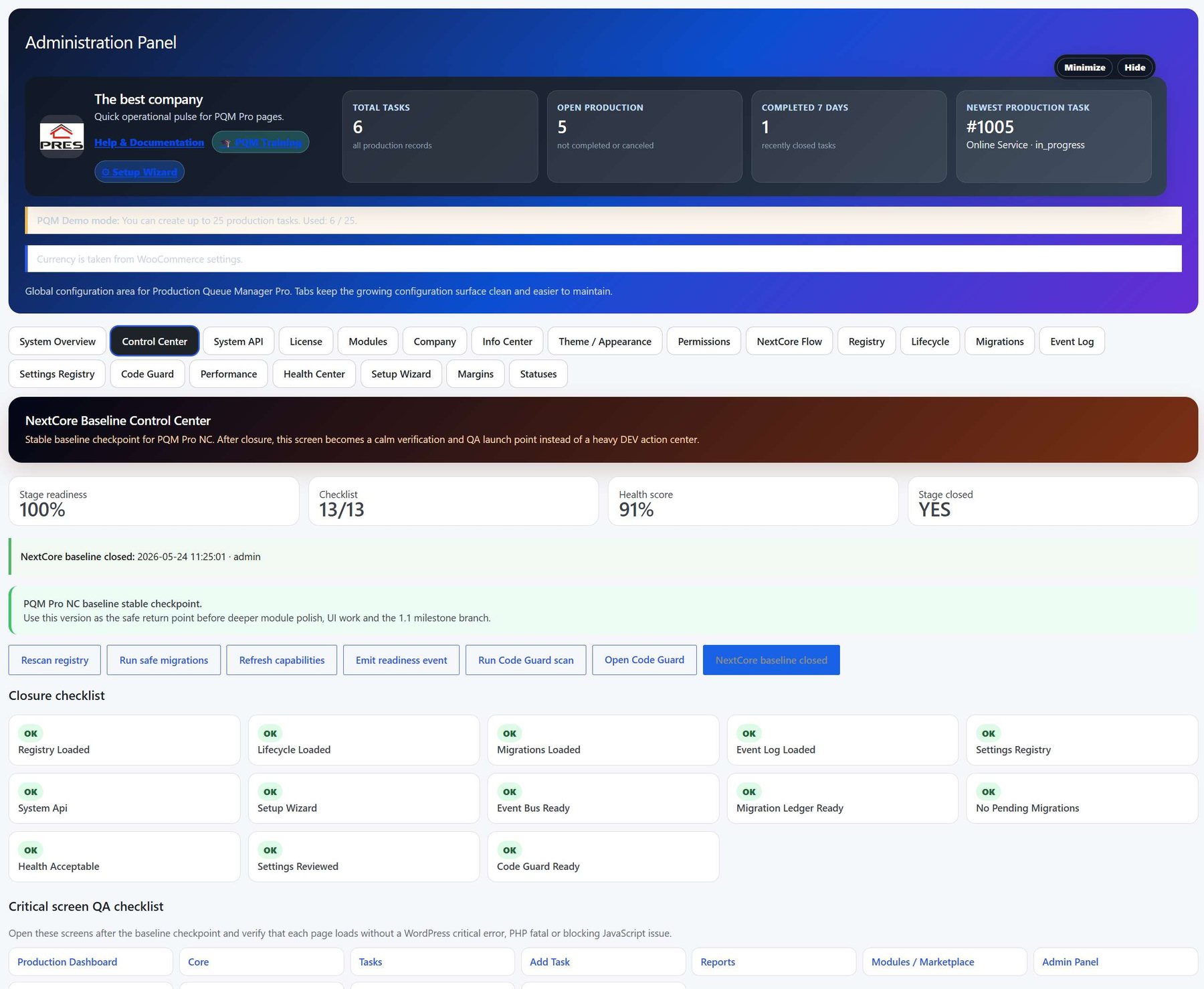
Admin tools and controls
Reference for technical controls, registry or configuration areas available to an administrator.
NextCore / system configuration view
Reference for deeper admin configuration and system-level options.
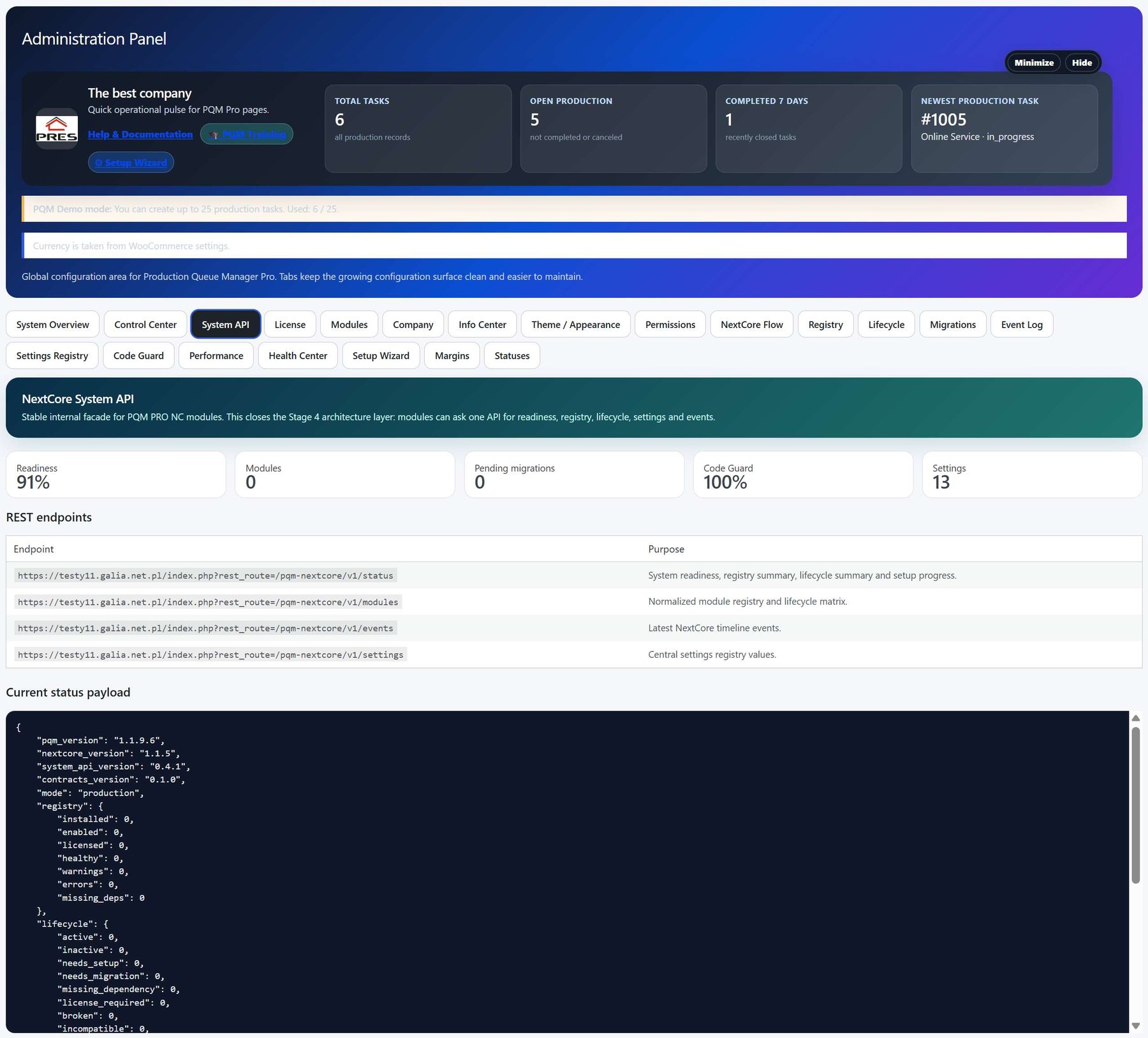
Admin Panel screenshot 4
Additional Admin Panel reference. Use it when explaining the exact screen visible in your PQM installation.
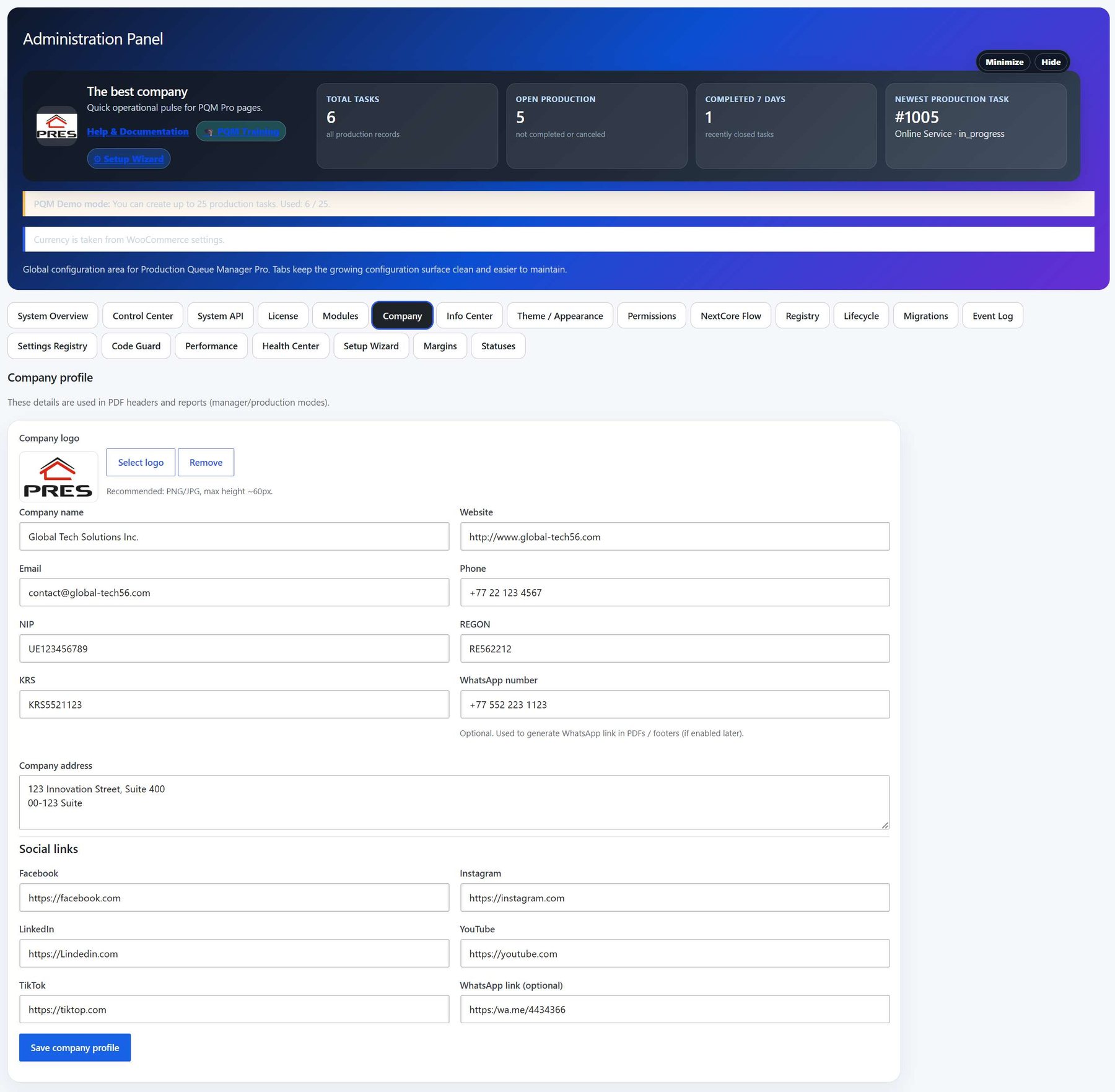
Admin Panel screenshot 5
Additional Admin Panel reference for administrator workflow and available actions.
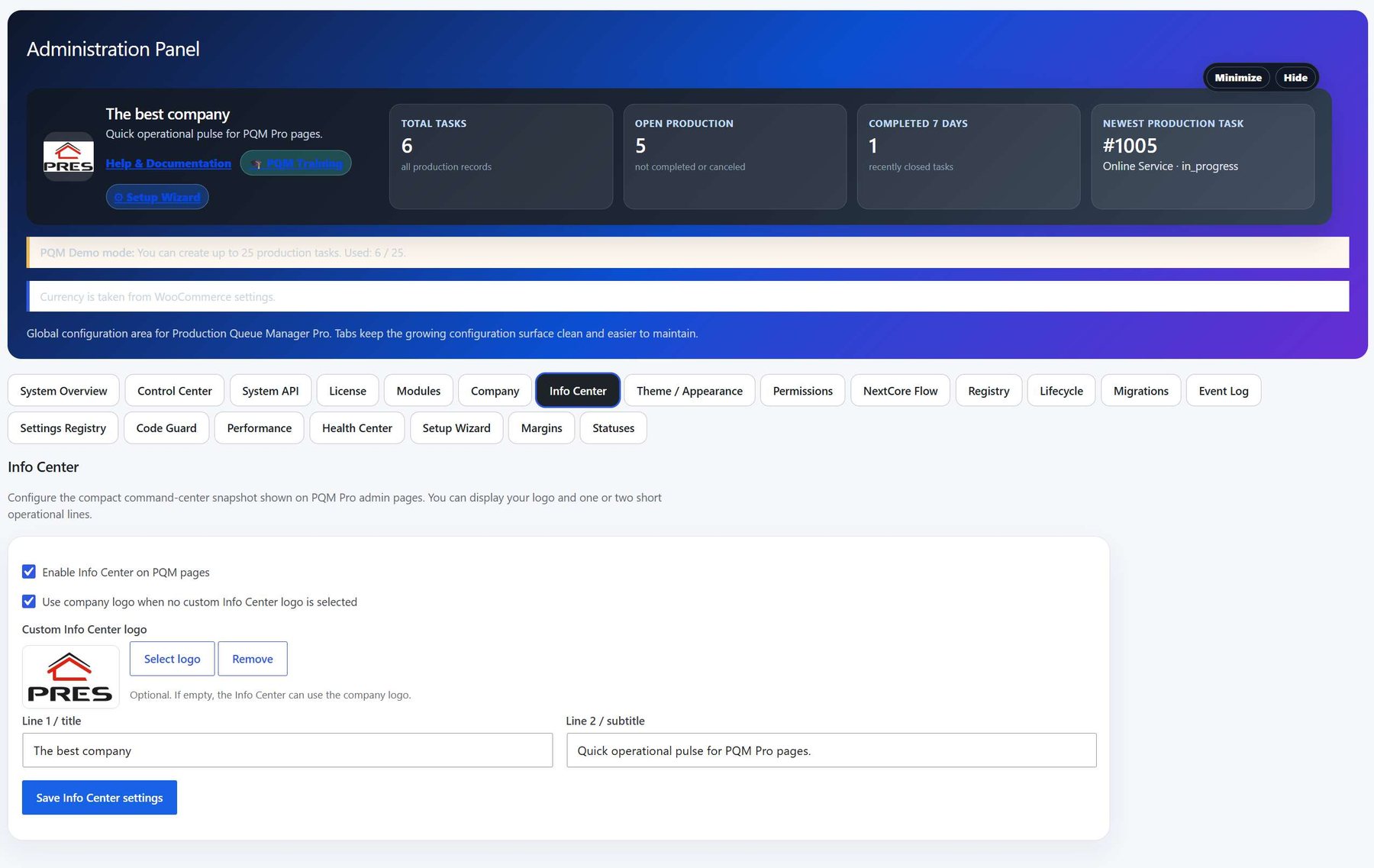
Admin Panel screenshot 6
Additional Admin Panel reference showing another part of the admin area.
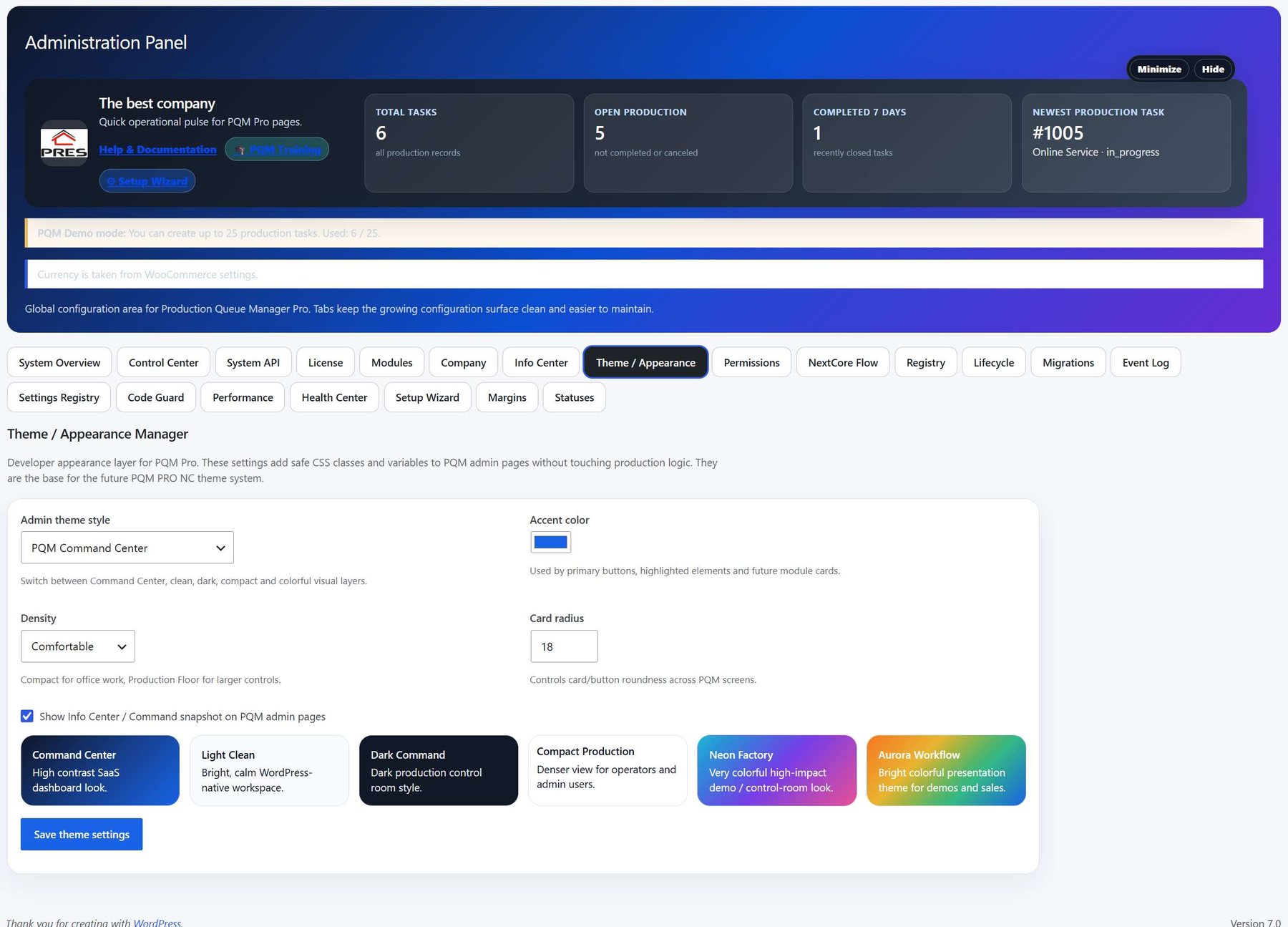
Admin Panel screenshot 7
Expanded administrator reference screen. Open the image if you need to zoom into the details.
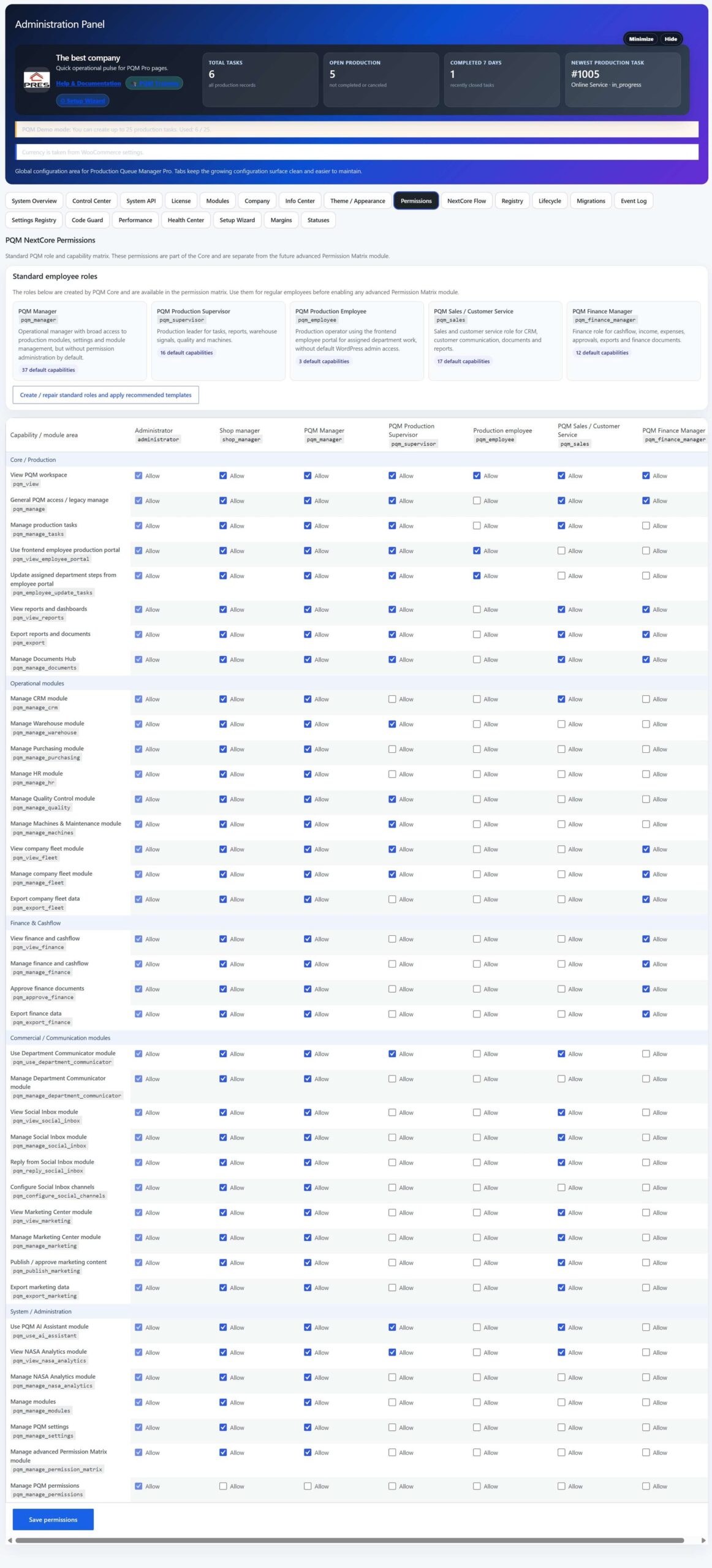
Admin Panel screenshot 8
Expanded administrator reference screen. This helps users connect the text instructions with the real UI.
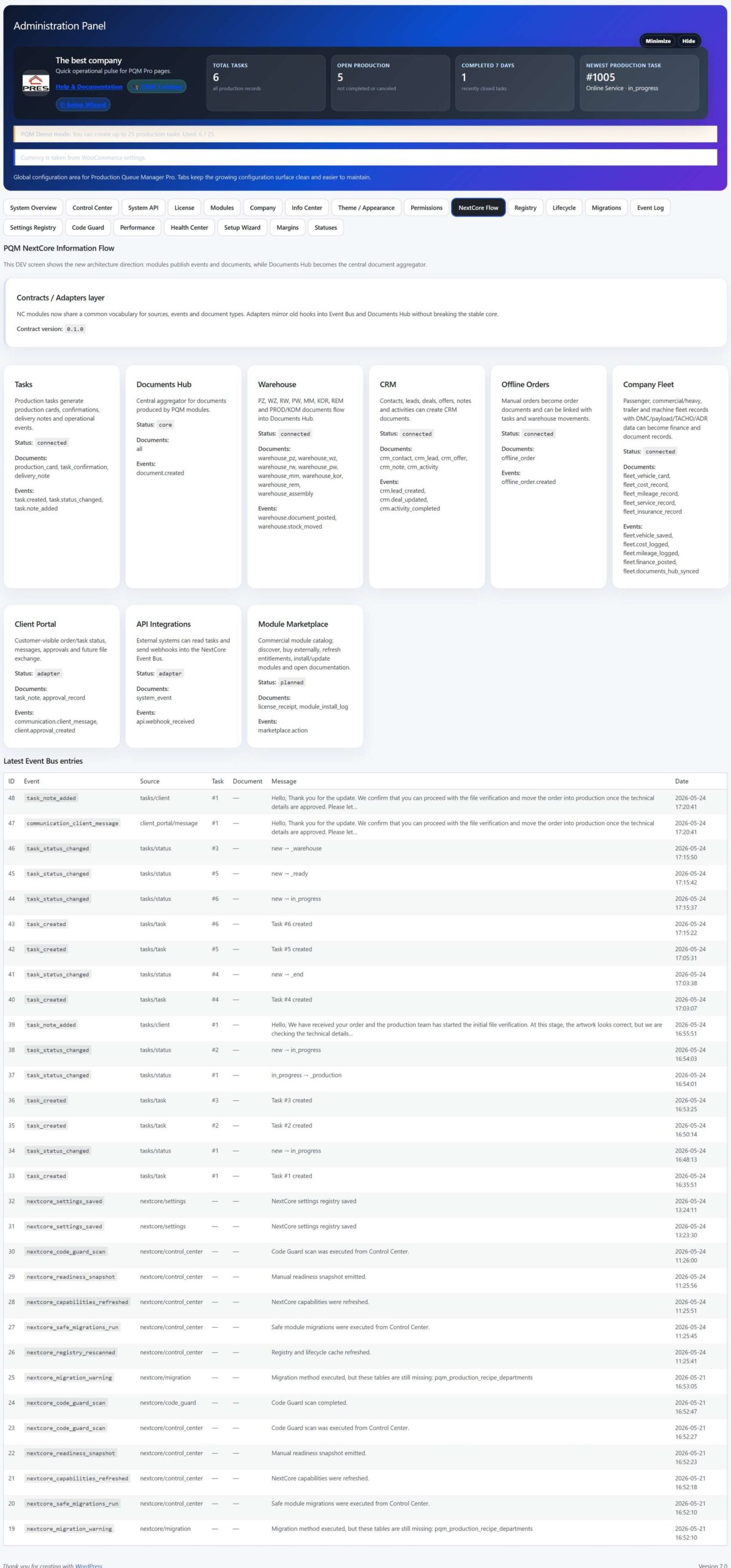
Admin Panel screenshot 9
Additional administrator reference screen.
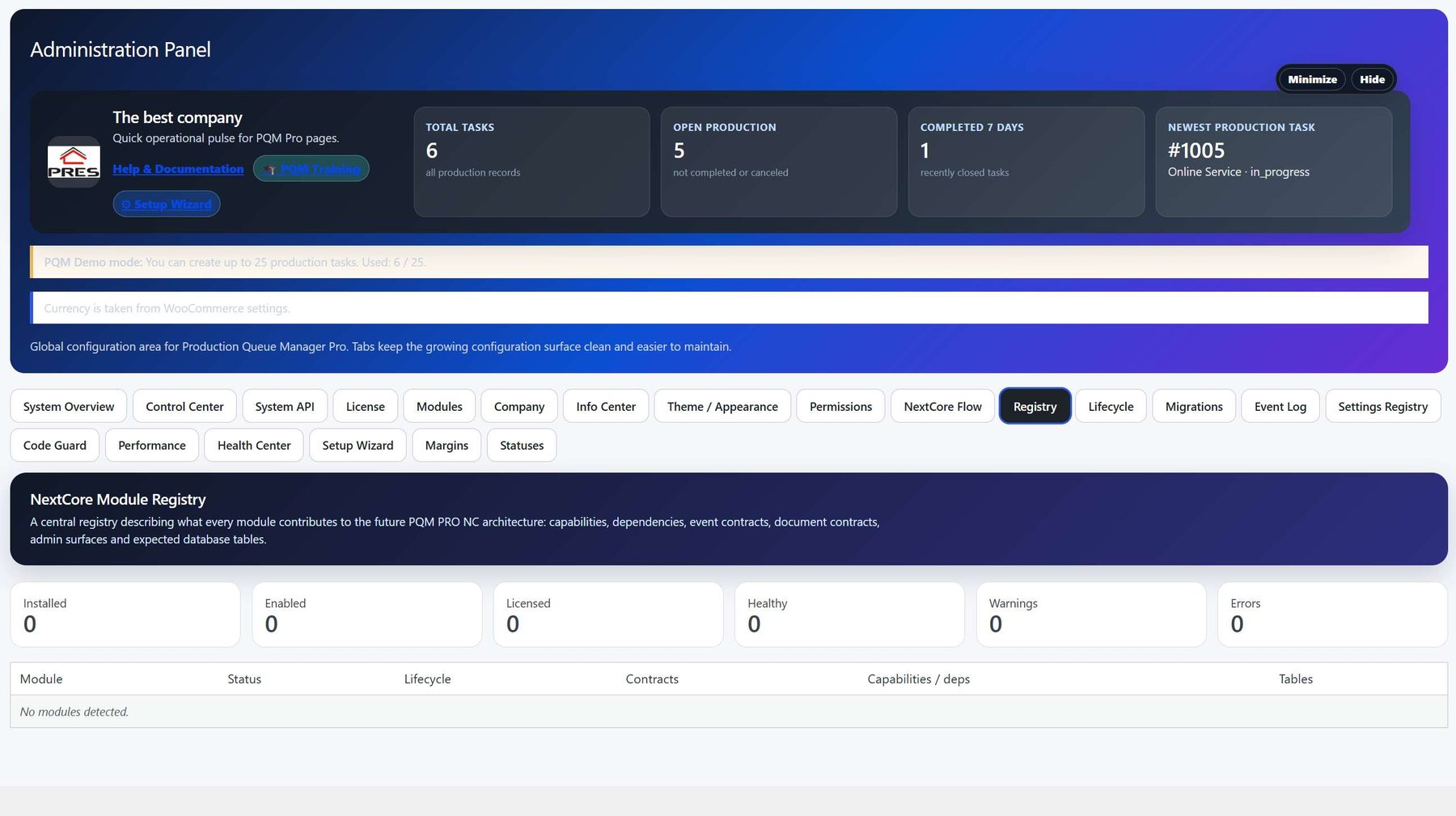
Admin Panel screenshot 10
Additional administrator reference screen.
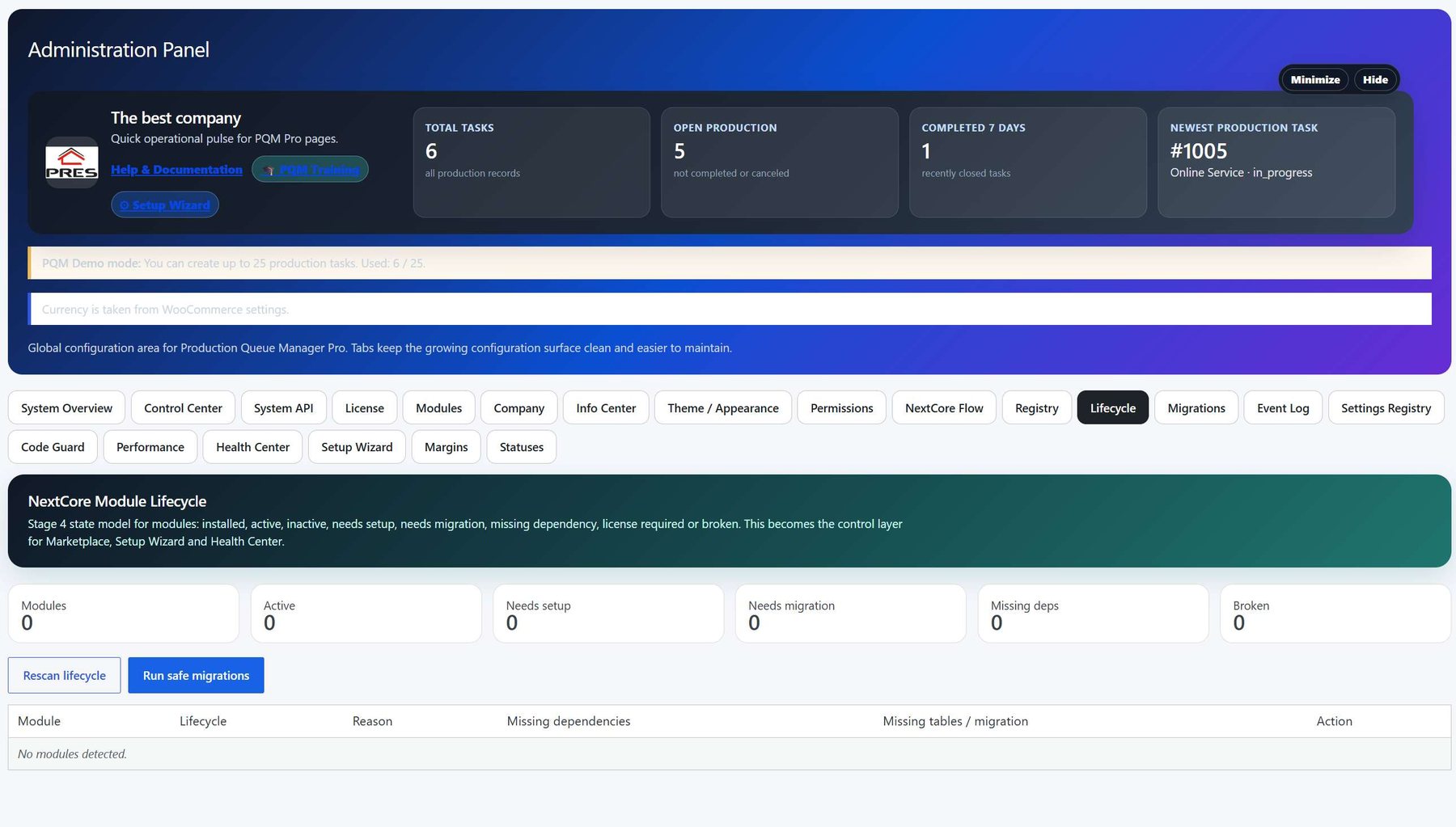
Admin Panel screenshot 11
Additional administrator reference screen.
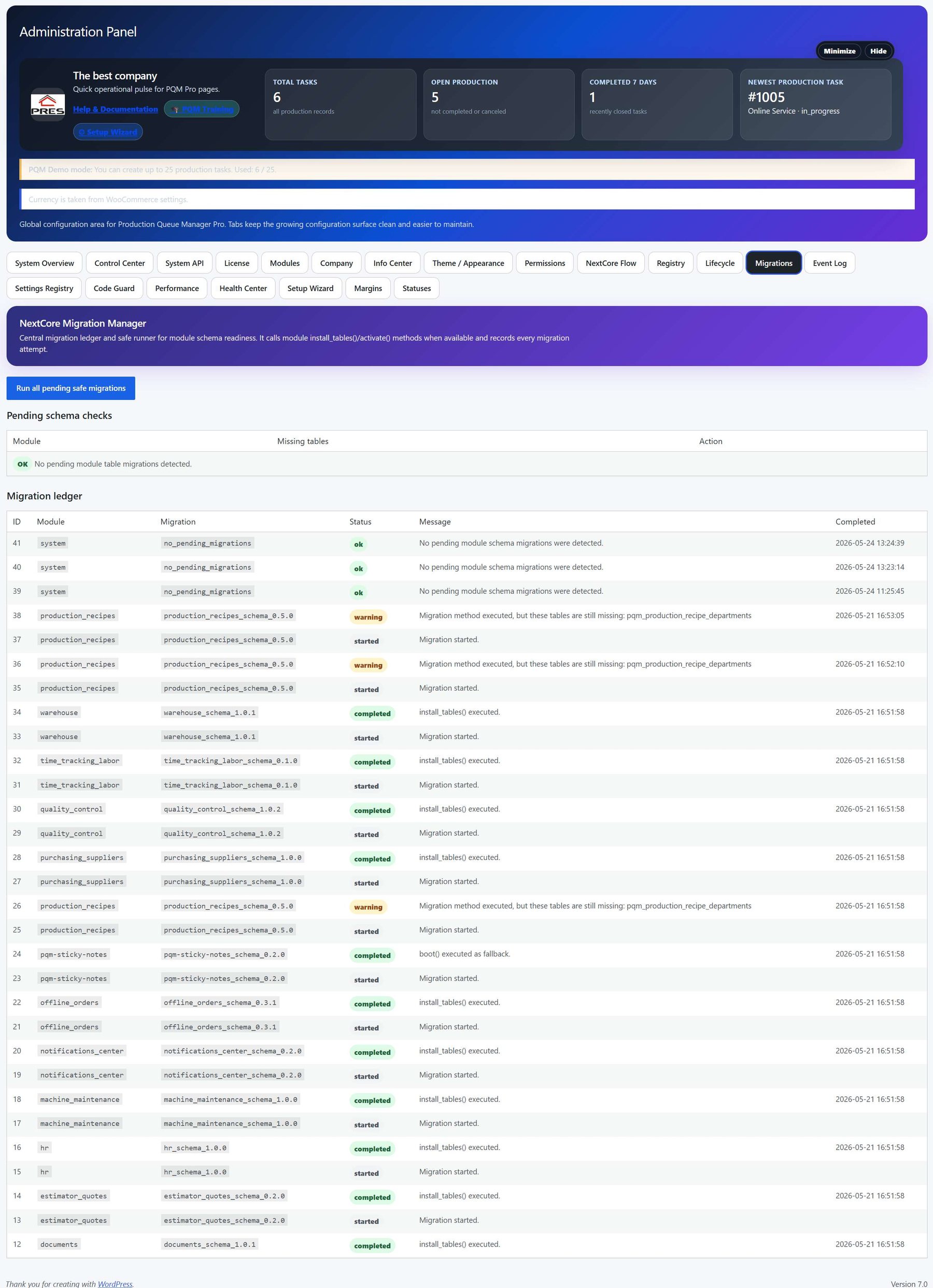
Admin Panel screenshot 12
Expanded administrator reference screen.
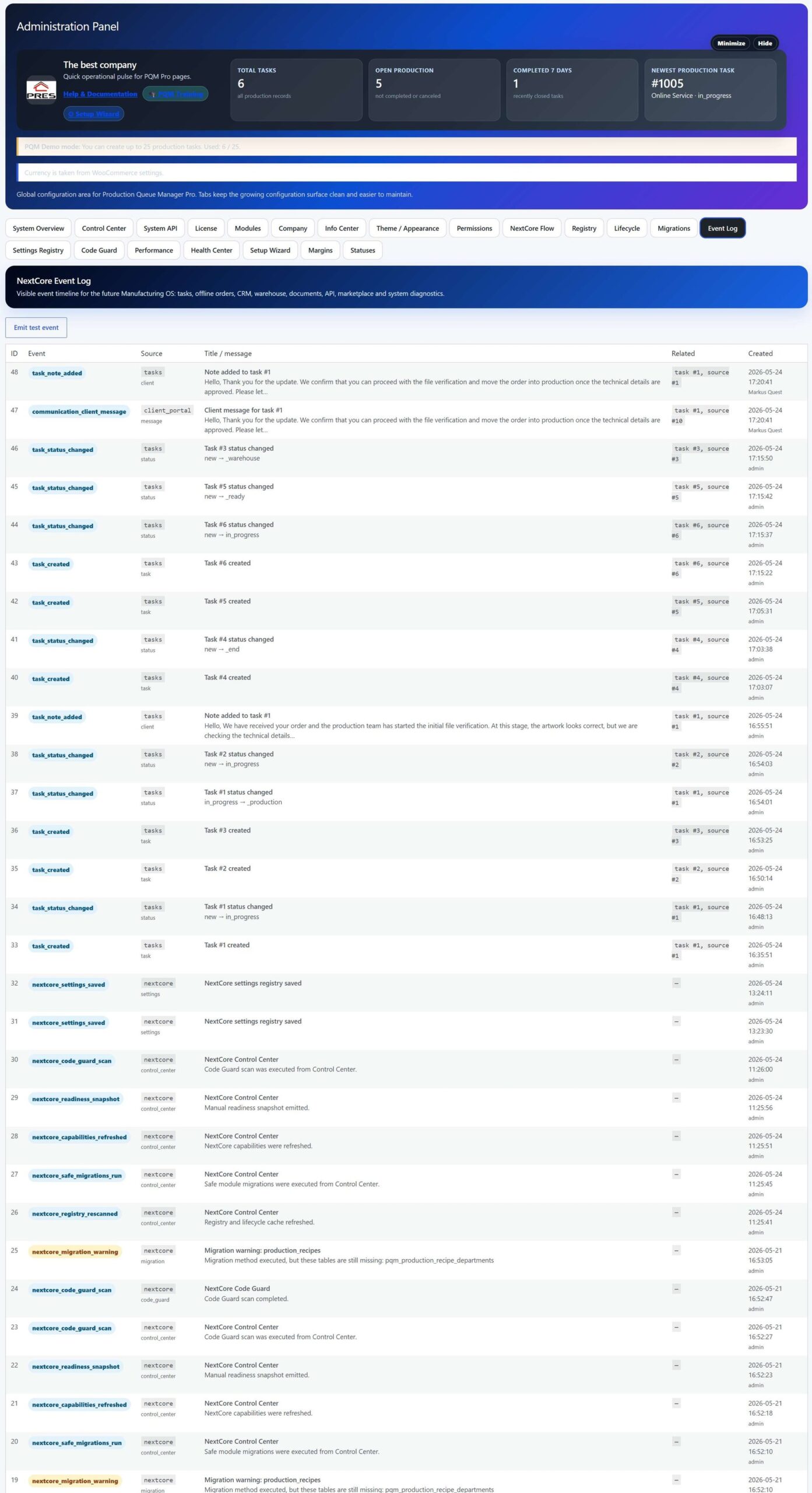
Admin Panel screenshot 13
Additional administrator reference screen.
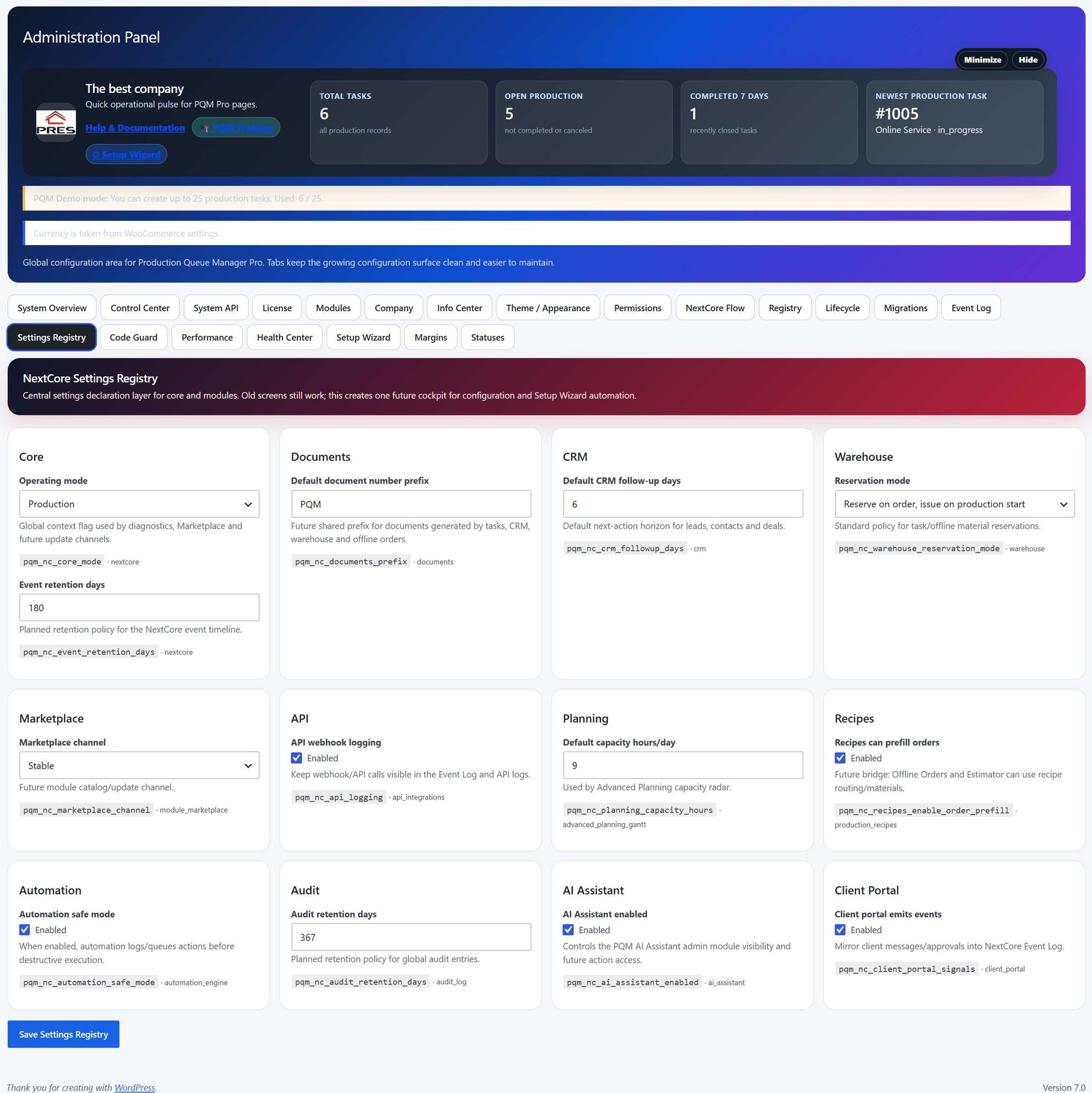
Admin Panel screenshot 14
Additional administrator reference screen.
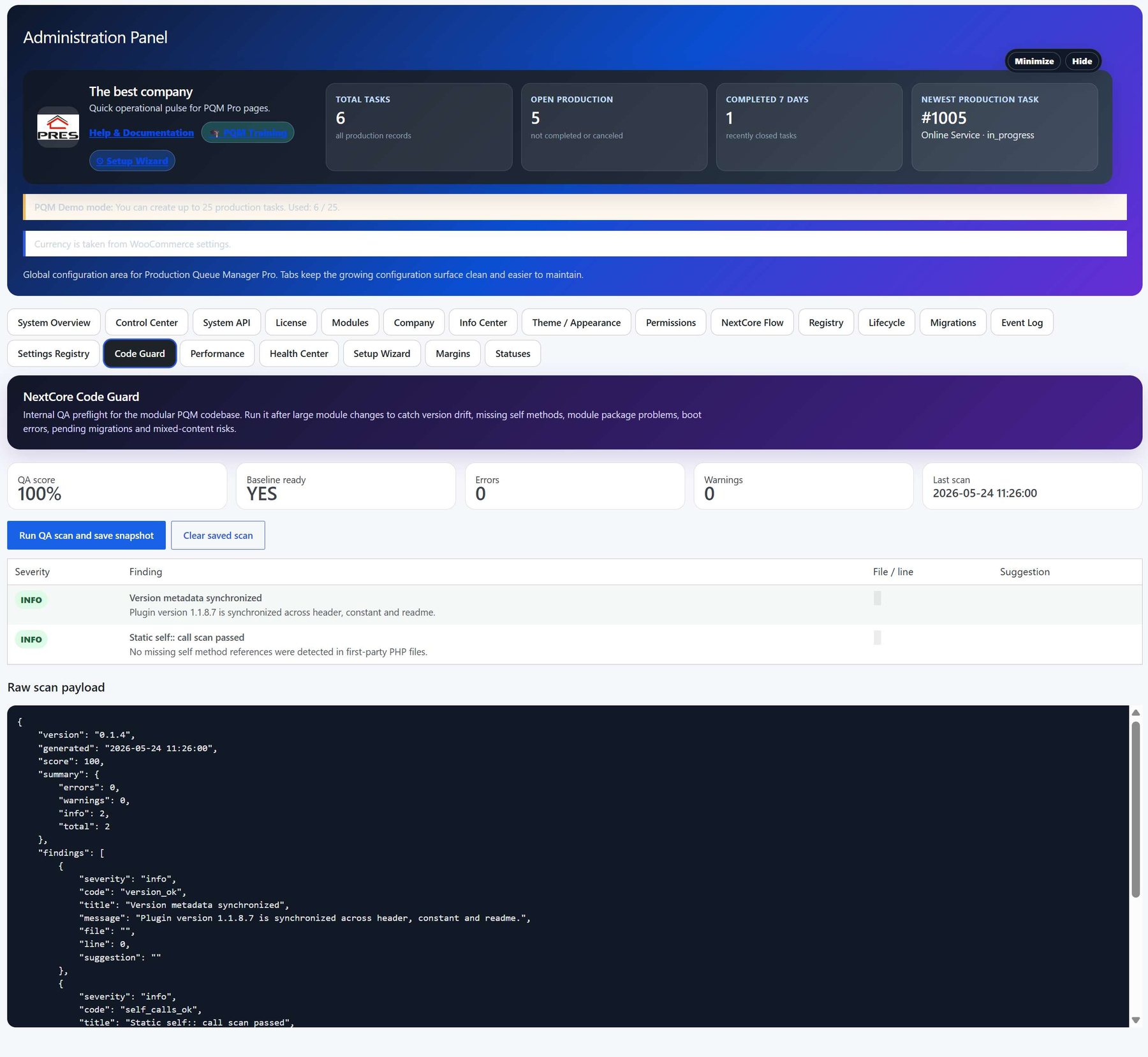
Admin Panel screenshot 15
Additional administrator reference screen.
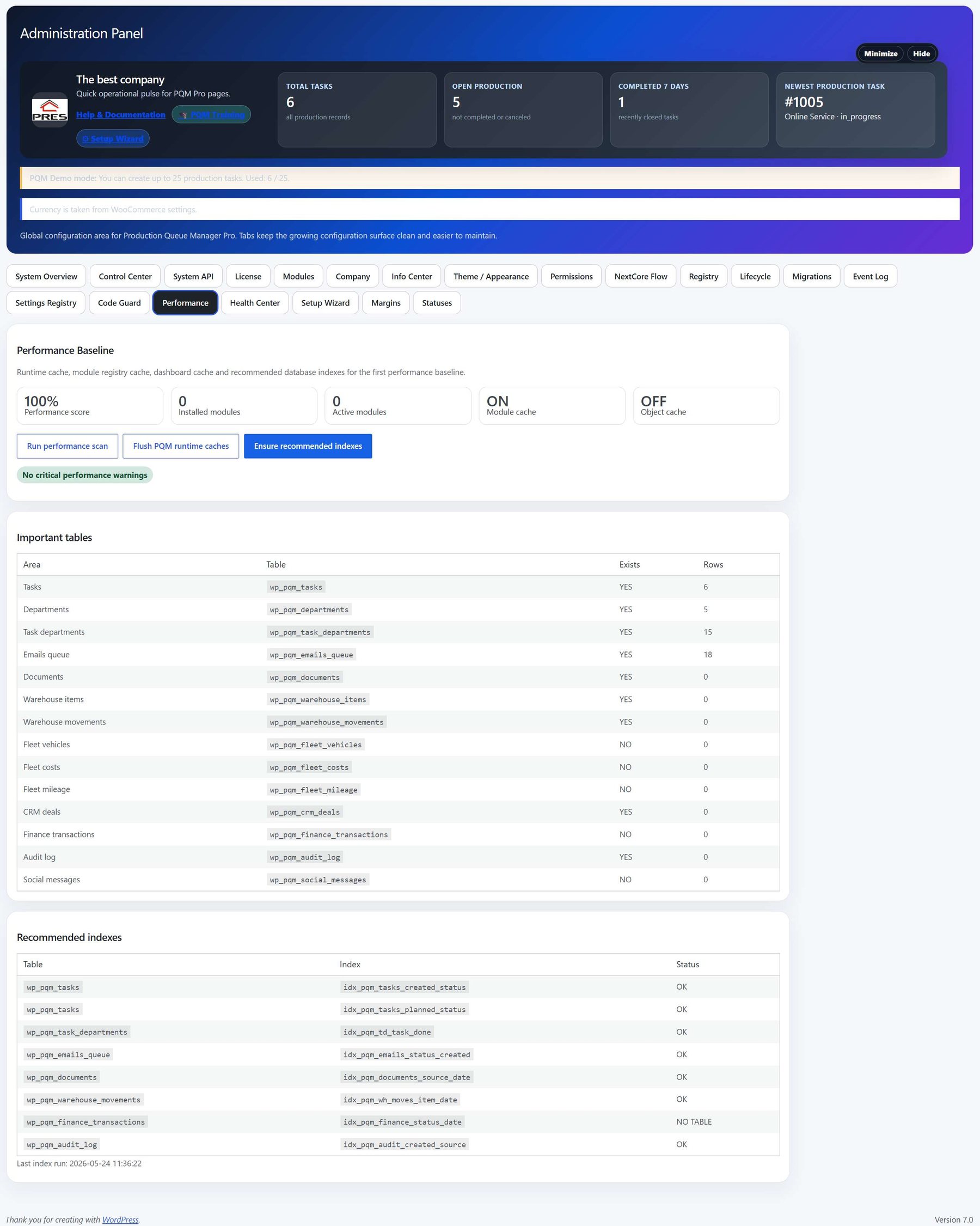
Admin Panel screenshot 16
Additional administrator reference screen.
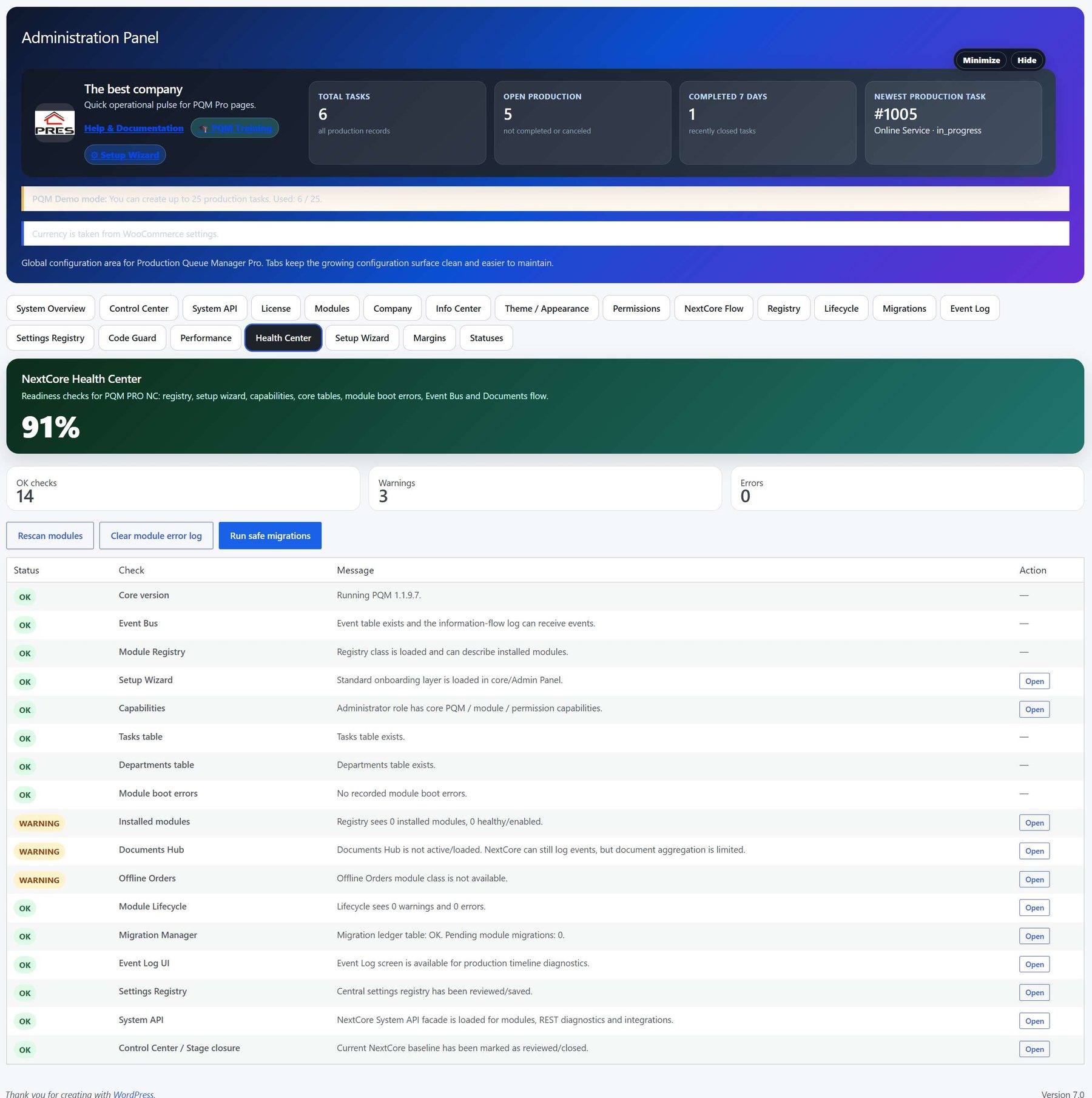
Admin Panel screenshot 17
Additional administrator reference screen.
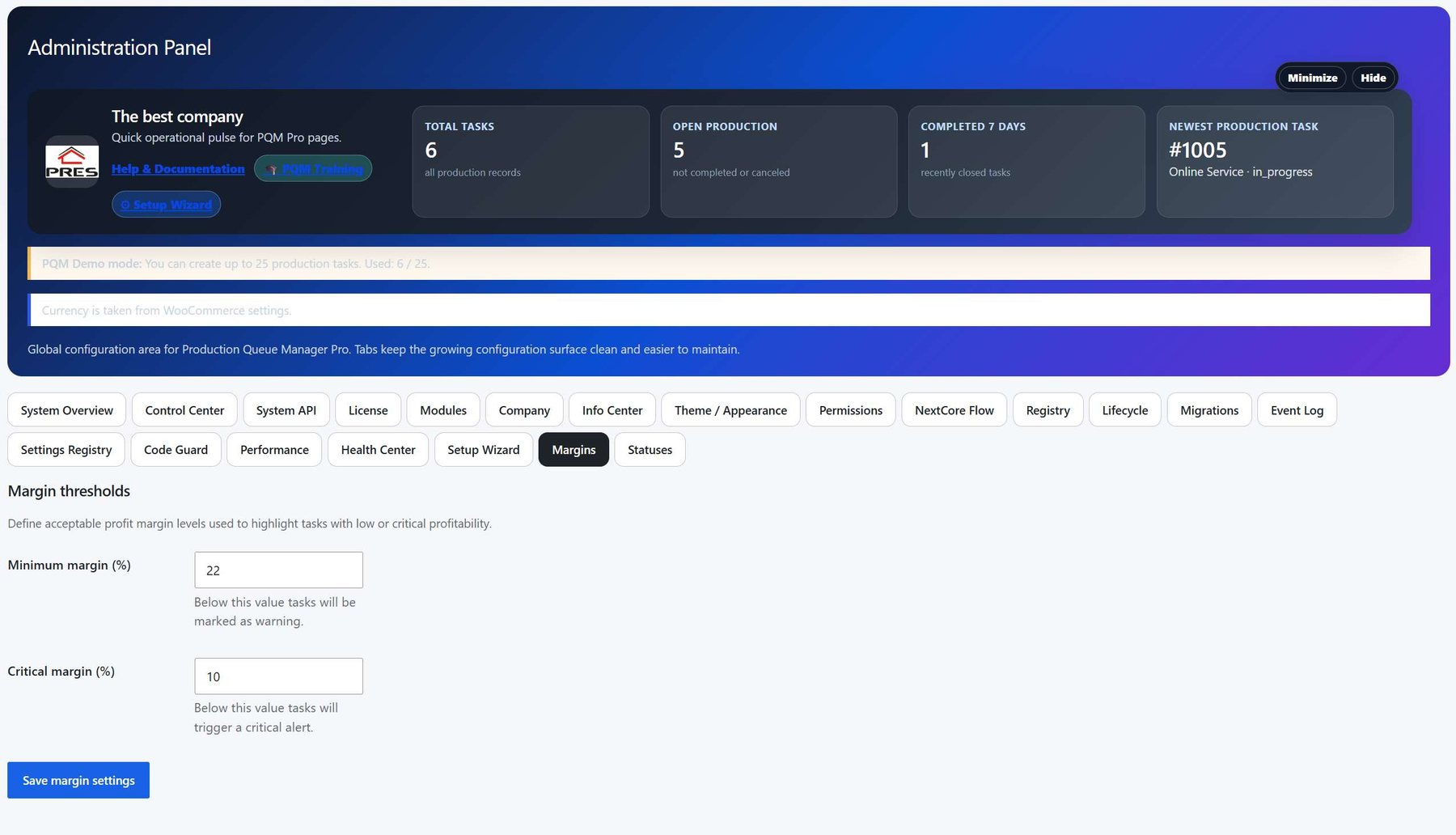
Admin Panel screenshot 18
Additional administrator reference screen.
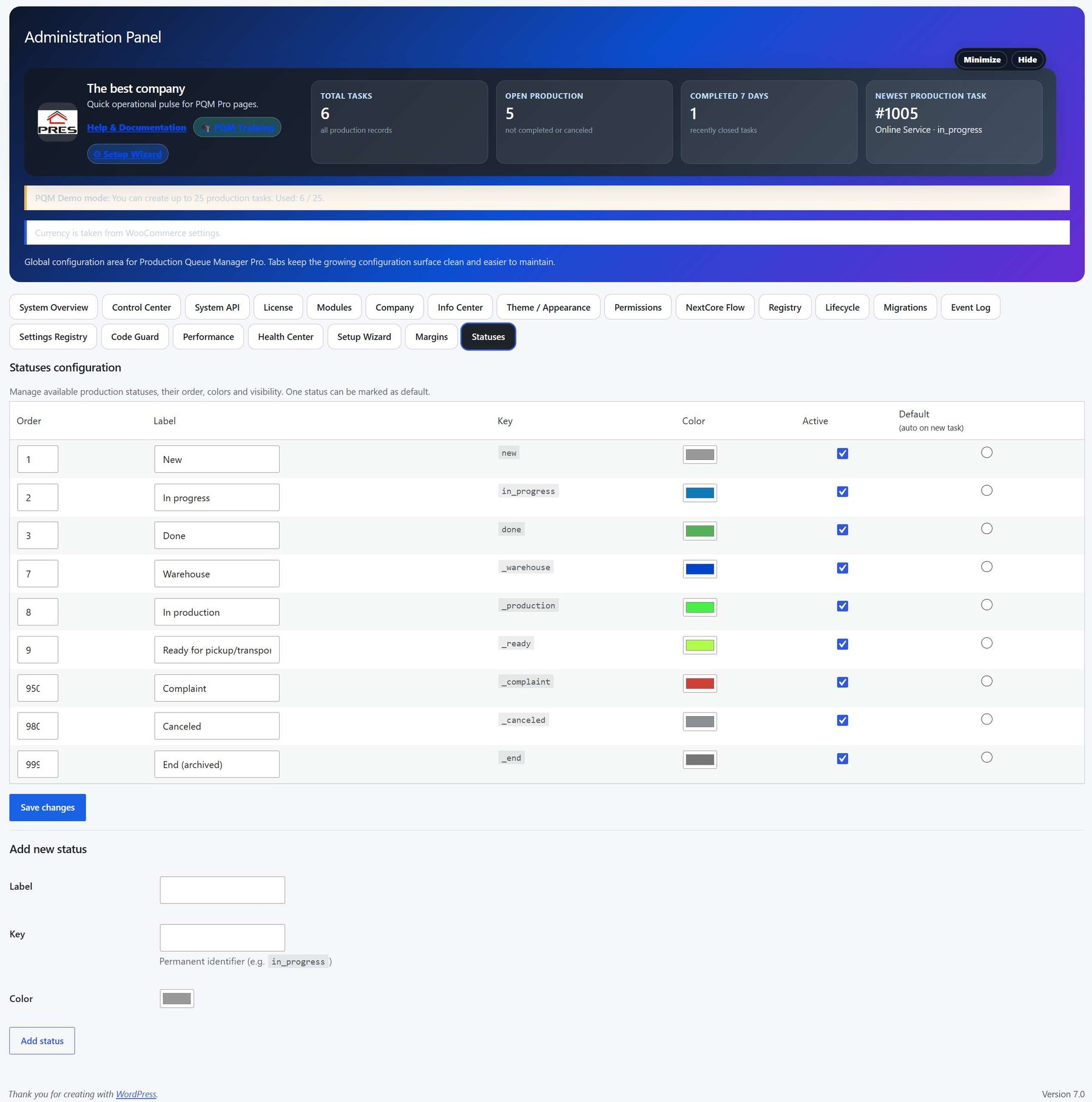
Who should use this screen?
AdministratorConfigures PQM, licenses, modules, health checks, capabilities and technical maintenance. This role should be limited to trusted users.
Manager / Shop ManagerControls daily production, creates tasks, checks reports, follows deadlines and supervises employee work without changing technical settings.
Production EmployeeWorks mainly in the frontend Employee Portal and updates assigned production stages without using the WordPress admin area.
Troubleshooting for beginners
| Symptom | Simple explanation | What to check first |
|---|---|---|
| The page looks empty | The system may have no demo data yet, or the current user may not have access to the required role/capability. | Create one test task, assign a department, then refresh the screen. Also check the user role. |
| A button opens a login page or My Account | The visitor is not logged in or the page is using a frontend-safe route that requires authentication. | Log in with a test user that has the expected role. Check whether the shortcode/page is visible only to logged-in users. |
| Data exists but does not appear in a report/chart | Filters, date range, status rules or completion dates may exclude the task. | Clear filters, expand the date range and verify that the task has the status/date required by the report. |
| Something changed but the screen still shows old data | Browser cache, WordPress cache or AJAX response cache may show old information. | Refresh the page, clear cache for this page and test in an incognito window before debugging code. |
| The layout is broken on a small screen | Wide tables and timelines need horizontal space; this is normal if the content remains readable. | Use the mobile breakpoint, keep cards in one column and allow horizontal scroll only inside tables/timelines. |
Readiness checklist
A beginner can explain what this screen is for after reading the first two sections.
The correct role can open the screen and restricted roles cannot see unsafe actions.
There is at least one realistic test task visible in the screen.
Buttons and links go to the expected place.
The empty state explains what to do next instead of looking broken.
The page remains readable on tablet and mobile.
Related training pages
Training HomeTraining overview and recommended learning path.Production DashboardDaily command center, active tasks, metrics and quick actions.Core ConfigurationSystem settings, statuses, roles, capabilities and safe defaults.Tasks and Add TaskHow to create, read and update production tasks step by step.Departments and WorkflowHow production stages and responsibilities are modeled.Calendar and Standard GanttDate planning, deadlines and visual timeline overview.Email Queue and CommunicationCustomer messages, email queue and communication templates.Reports and KPIKPI, margins, bottlenecks, exports and production analysis.